Using AI to Generate Meeting Minutes in Microsoft Teams
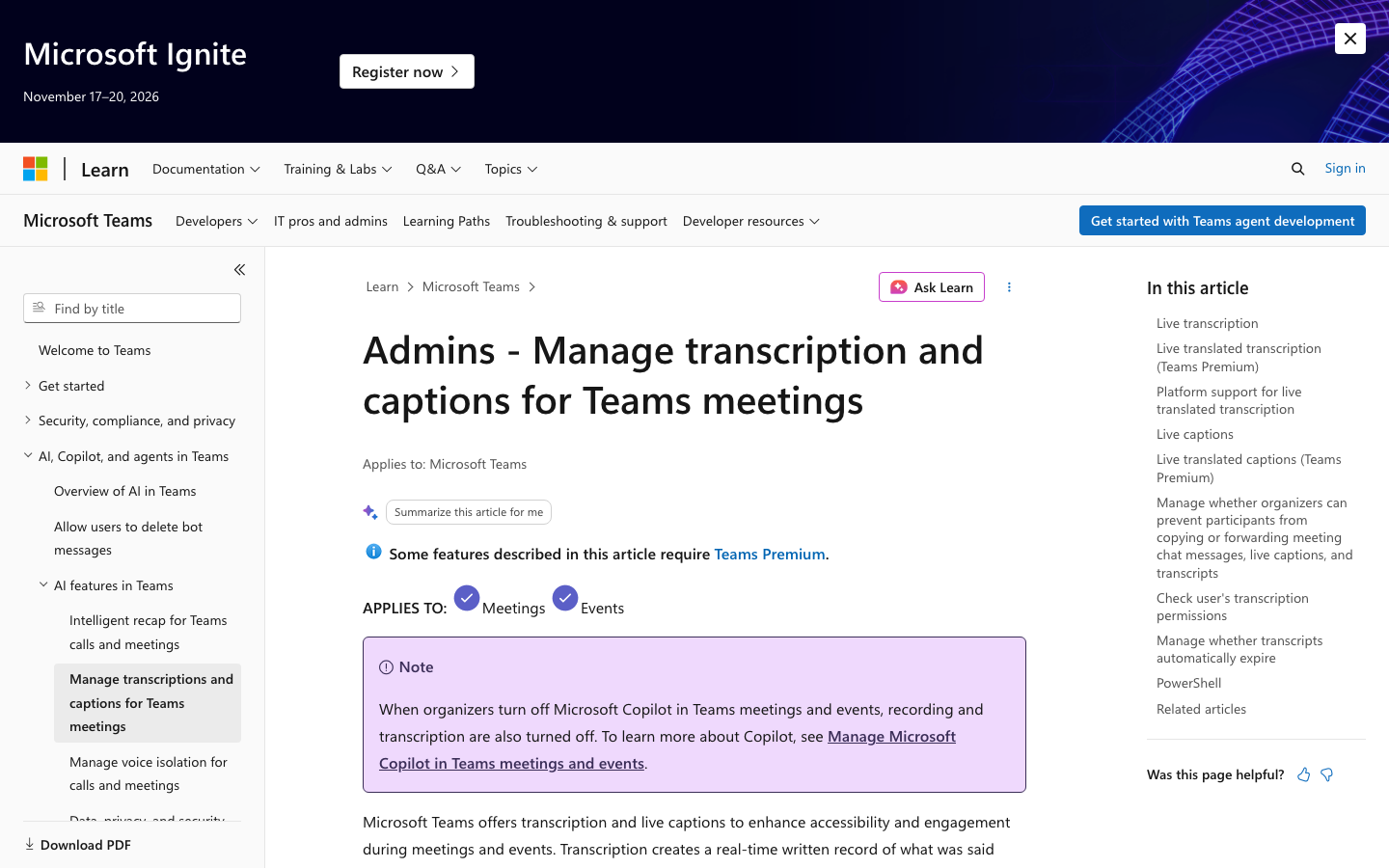
Microsoft 365 Copilot can draft a summary, action items and answers about a Teams meeting. Whether it can do that for your meeting is decided before anyone speaks, by three settings: transcription, the organiser's Copilot meeting option, and the licence and admin policy attached to the account.
This page is the switch-on guide. It stays on Microsoft's own current documentation for what each setting does, and it keeps the general question of what AI can automate across platforms in the companion guide, How AI Can Automate Your Meeting Minutes. Sources were checked on 1 September 2026.
What Copilot in Teams actually produces
Microsoft's current support page says Copilot summarises key discussion points, including who spoke and what they said, suggests action items, and answers questions in real time during or after a meeting.
After the meeting, Copilot is reachable from the meeting chat and from the Recap tab. Microsoft's recap walkthrough is four steps: open the meeting chat, select the Recap tab, select Copilot, select View prompts, then select Recap the meeting. The same page carries a plain instruction: be sure to verify your results, because AI-generated content could be incorrect.
Two boundaries are worth knowing before you promise anything to a team. Microsoft states that Copilot will not work in meetings hosted outside the participant's organisation. And intelligent recap is described as part of Teams Premium, an add-on licence, and is also available as part of the Microsoft Copilot licence.
So the output is a draft with named speakers and suggested actions — not an approved minute.
Switch 1 — transcription is what makes minutes survive the meeting
Microsoft is precise about this and it is the single most misread point. Transcription is not required to turn Copilot on in a meeting. But to prompt Copilot about the meeting, or to see Copilot's conversation history after the meeting ends, live transcription has to be turned on during the meeting. To ask questions about what was said once the meeting is over, a transcript must be available.
On the admin side, transcription is both a per-organiser and a per-user policy setting. For a meeting to include a transcript, the organiser must have the setting on, and the person who starts the recording or transcript must have it on too. One missing toggle on either account is enough to end up with no transcript.
Transcripts are stored together with meeting recordings in OneDrive and SharePoint, and participants can view the transcript afterwards with timestamps and speaker attribution. Live captions are a different thing: Teams does not save them.
Recurring meetings have a trap. Microsoft warns that previous Copilot conversation history in a recurring meeting is no longer available once a later meeting in the series is transcribed, and that if a transcript is no longer available, Copilot becomes unavailable and the earlier history is removed. Export what you need when you need it.
Switch 2 — the organiser's Copilot meeting option
The organiser decides how and whether participants can use Copilot, and Microsoft notes the organiser holds that control even without a Copilot licence of their own. The setting is Allow Copilot and Facilitator, found in the meeting scheduler under Online meeting options > Copilot and other AI. Which values are offered depends on the organisation's policy, sensitivity label and template settings.
During and after the meeting. Transcription is required. Copilot starts as soon as someone begins transcribing, and stopping transcription also stops Copilot. Selecting Copilot in the meeting controls prompts to start transcription.
Only during the meeting. Copilot starts when it is selected in the meeting controls and works from speech-to-text data. After the meeting ends, speech-to-text data that was not transcribed, along with the interactions with Copilot, is no longer available. If someone does start transcribing, Copilot becomes available during and after the meeting for the transcribed portions.
Off. Copilot is disabled for the meeting — and Microsoft states that recording and transcription are disabled as well, to prevent Copilot from accessing sensitive information. The Teams admin documentation repeats the same rule from the other direction: when organisers turn off Copilot in Teams meetings and events, recording and transcription are also turned off.
If minutes matter for a given meeting, "During and after the meeting" plus transcription is the only combination that reliably leaves you something to check the draft against.
Switch 3 — licence, account and admin policy
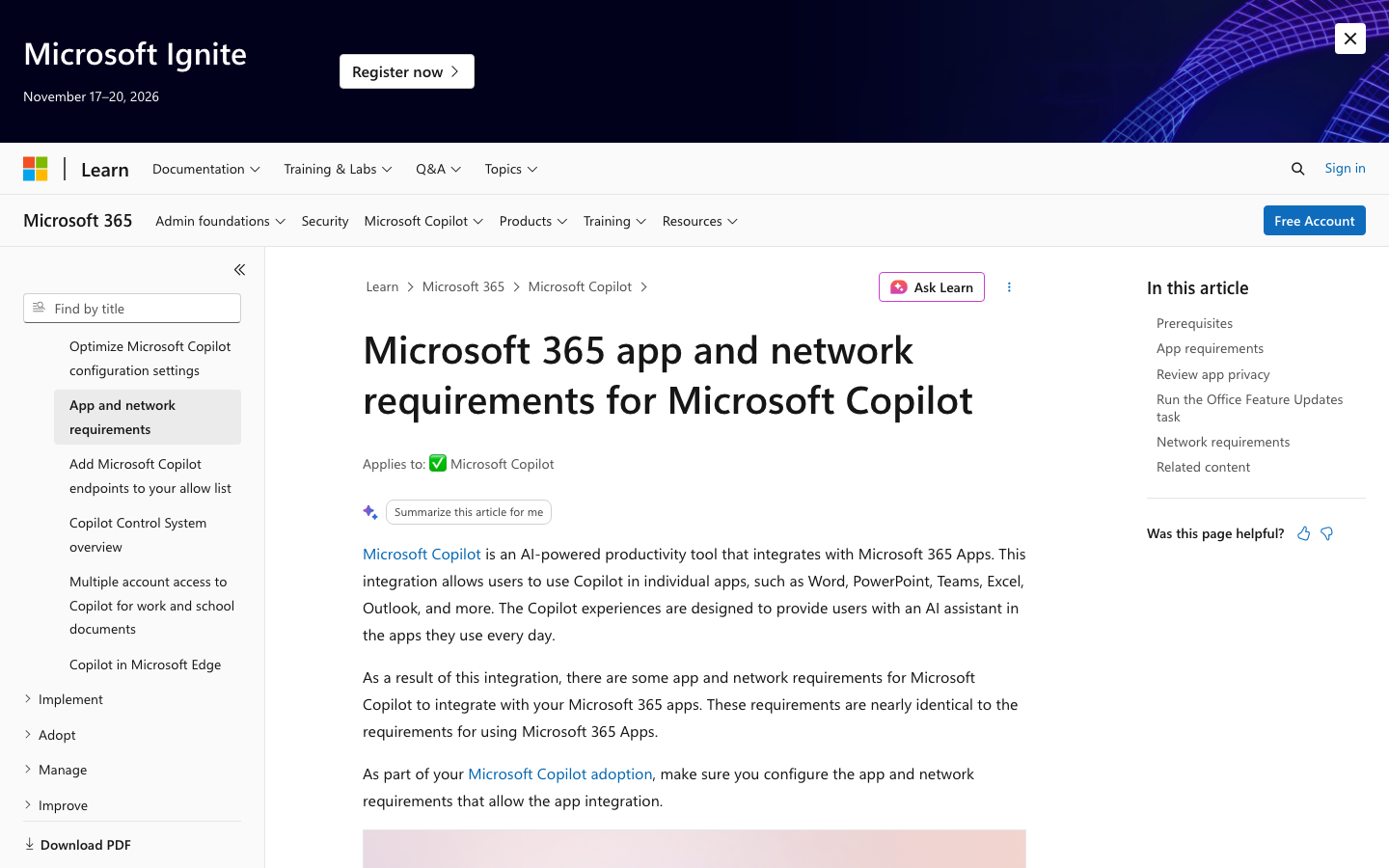
Microsoft's requirements documentation lists the account-level prerequisites: users must have a Microsoft 365 licence assigned to them, they must have Microsoft Entra ID accounts, and Copilot supports only primary mailboxes hosted on Exchange Online — not archive, group, shared or delegate mailboxes. Copilot in Teams itself is available on Windows, Mac, web, Android and iOS.
The same page states the rule this whole guide turns on: to enable Copilot in Teams to reference meeting content after the meeting ends, enable transcription or meeting recording.
Administrators control transcription in the Teams admin center under Meetings > Meeting policies, where the Transcription toggle is on by default for new policies, or through PowerShell with the `-AllowTranscription` parameter in `Set-CsTeamsMeetingPolicy`. If a specific user cannot start a transcript, Microsoft provides a Teams transcripts diagnostic tool in the Microsoft 365 admin center to check whether that account meets the requirements.
Two licence-gated extras are easy to assume and expensive to assume wrongly: intelligent recap sits with Teams Premium or the Microsoft Copilot licence, and live translated transcription requires the organiser to hold a Teams Premium licence.
What it costs to switch on
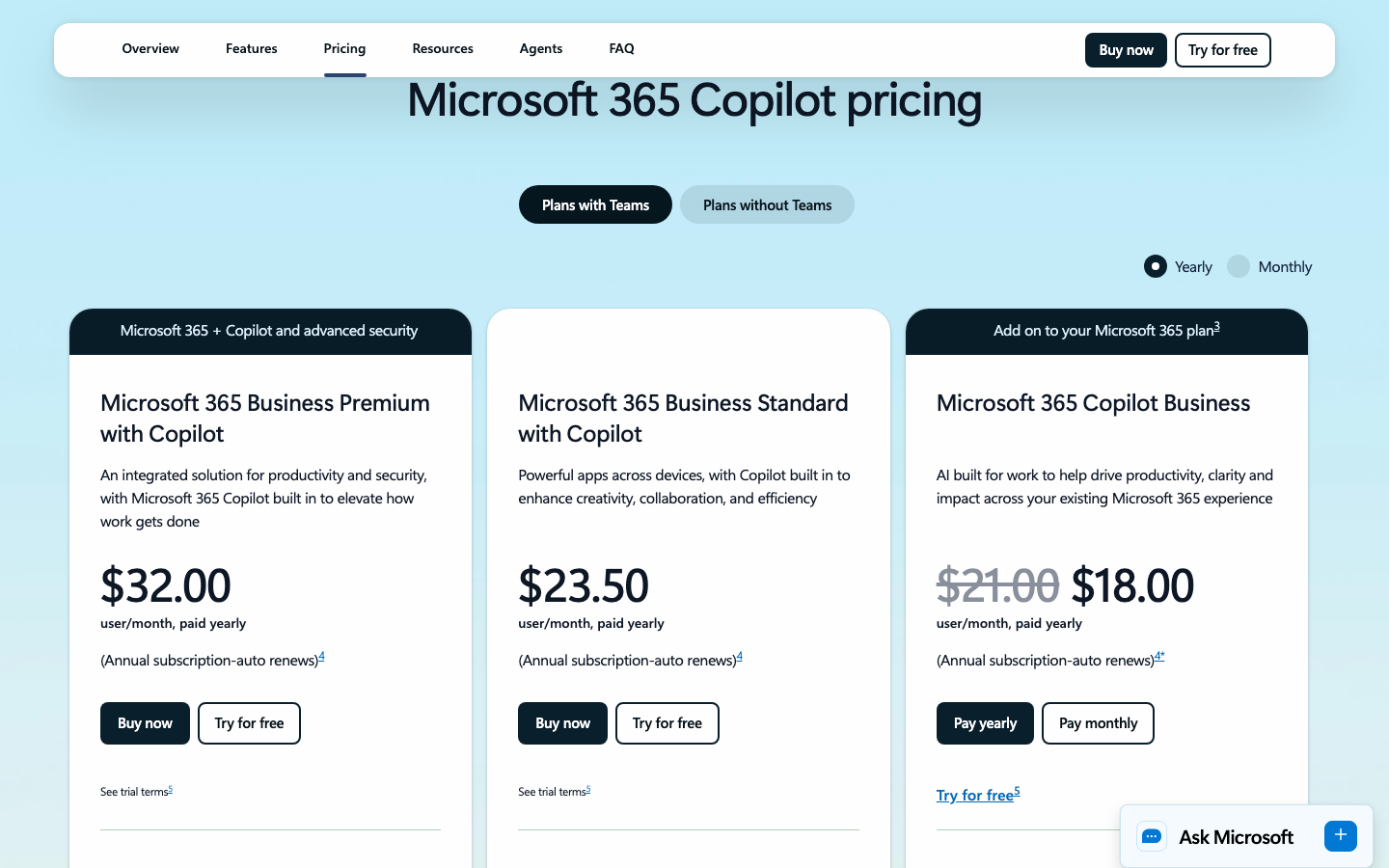
Prices move, so treat this as a capture rather than a quote. On Microsoft's own Microsoft 365 Copilot business pricing page, viewed on 1 September 2026 with the Plans with Teams and Yearly options selected, the listed prices were:
- Microsoft 365 Business Premium with Copilot — $32.00 user/month, paid yearly.
- Microsoft 365 Business Standard with Copilot — $23.50 user/month, paid yearly.
- Microsoft 365 Copilot Business, sold as an add-on to an existing Microsoft 365 plan — shown at $18.00 user/month paid yearly, reduced from $21.00.
All three are described on the page as annual subscriptions that auto-renew, and the figures are the US page's US-dollar list prices. Open your own region's page before budgeting, and re-check before you buy.
Sources: [5]
From a recap to minutes people can act on
A recap is a draft. Turning it into minutes is a short, boring routine that someone has to own.
- Open the Recap tab, run the recap prompt, and read the draft against the transcript rather than from memory.
- Correct names, figures, dates, decisions and action owners. Microsoft's own note on the recap page is to verify results because AI-generated content could be incorrect.
- Move it into a document. If a Copilot response runs past 1,300 characters, Teams offers Open in Word; if the response is a table, it offers Open in Excel.
- Expect the export to be blocked when it should be. If the meeting carries a sensitivity label that prevents exporting content, or the organiser turned on the option to stop copying and forwarding of meeting chat, live captions and transcripts, those exports are unavailable by design.
- Record who approved the minute and who received it.
The draft saves the typing. The named reviewer is what makes it a record.
Where Memora fits when Teams is not the room
Two gaps in the Teams path are structural rather than fixable by settings. Copilot does not work in meetings hosted outside your own organisation, and none of it applies to a conversation that never becomes a Teams call — a client visit, a site walk, a table of eight people in one room.
Memora's public staff guide covers that case with a browser recorder: sign in, tap the microphone, pause and resume as needed, tap End Meeting and keep the page open until the upload finishes, then open Meetings to review the audio, transcript, summary, action items and decisions. The guide also asks you to choose EN for English meetings or BM for Bahasa Melayu meetings, and to place the device or microphone near the centre of the table.
The review step is the same either way. For the in-room version of this workflow, see How AI Can Assist with Physical Meeting Minutes.
What each Teams setting changes
| Setting | What Microsoft's current guidance says | What it means for your minutes |
|---|---|---|
| Allow Copilot: During and after the meeting | Transcription is required; Copilot starts when someone begins transcribing, and stopping transcription stops Copilot | The only combination that reliably leaves a transcript to check the draft against |
| Allow Copilot: Only during the meeting | Copilot works from speech-to-text; after the meeting, untranscribed speech-to-text data and Copilot interactions are no longer available | Capture the draft before you leave the call, or start a transcript |
| Allow Copilot: Off | Copilot is disabled, and recording and transcription are disabled as well | No AI draft and no transcript |
| Transcription policy (admin) | A per-organiser and per-user setting; the organiser and the person starting the transcript both need it turned on | One missing toggle on either account and there is no transcript |
| Licence and account | An assigned Microsoft 365 licence and an Entra ID account are required; intelligent recap needs Teams Premium or a Microsoft Copilot licence | Budget and admin approval come before the rollout, not after |
| External meetings | Copilot will not work in meetings hosted outside the participant's organisation | Client and partner calls on someone else's tenant need a different capture route |
Before your next Teams meeting that needs minutes
- Confirm the organiser's Allow Copilot and Facilitator option is set to During and after the meeting
- Confirm the transcription policy is on for the organiser and for whoever will start the transcript
- Start live transcription in the meeting, not just Copilot
- Check the account has an assigned Microsoft 365 licence and an Entra ID sign-in
- Check whether intelligent recap needs Teams Premium or a Microsoft Copilot licence in your tenant
- Tell participants that transcription and AI note-taking are running
- Name the person who will compare the recap draft against the transcript
- Export what you need from a recurring meeting before the next occurrence is transcribed
- Decide who receives the draft and who receives the approved minute
- Plan a separate capture route for meetings hosted outside your organisation
FAQ
Do I need transcription switched on to get meeting minutes from Copilot in Teams?
For minutes produced after the meeting, yes. Microsoft says transcription is not required to turn Copilot on during a meeting, but that live transcription must be on during the meeting in order to prompt Copilot about it or see Copilot's conversation history afterwards, and that a transcript must be available to ask what was said once the meeting has ended.
Who decides whether Copilot can be used in a Teams meeting?
The organiser, through the Allow Copilot and Facilitator meeting option, within whatever the organisation's policy, sensitivity label and template settings permit. Microsoft notes the organiser holds this control even without their own Copilot licence. Administrators separately control transcription through Teams meeting policies, and turning Copilot off for a meeting also turns off recording and transcription.
What licence do I need before rolling this out?
Microsoft's requirements page states that users need an assigned Microsoft 365 licence, a Microsoft Entra ID account and a primary mailbox on Exchange Online. Intelligent recap is described as part of Teams Premium or the Microsoft Copilot licence. Microsoft's business pricing page, captured on 1 September 2026, listed Microsoft 365 Copilot Business as an add-on at $18.00 user/month paid yearly, reduced from $21.00. Check your own region's page for current prices.
Can Copilot recap a meeting that another company hosted?
No. Microsoft states that Copilot will not work in meetings hosted outside the participant's organisation, so a client or partner call on someone else's tenant needs a different capture method agreed with the people in the meeting.
Key takeaways
- Copilot in Teams summarises discussion, suggests action items and answers questions, but Microsoft tells users to verify the output.
- Live transcription during the meeting is what makes after-meeting minutes possible.
- The organiser's Allow Copilot and Facilitator setting decides whether Copilot works during, during and after, or not at all.
- Transcription is a per-organiser and per-user policy — both accounts need it on.
- Licensing is a real gate: an assigned Microsoft 365 licence, an Entra ID account, and Teams Premium or a Copilot licence for intelligent recap.
- Copilot does not work in meetings hosted outside your organisation, so external and in-room meetings need another route.
Sources and image provenance
- Catch up on meetings with Microsoft Copilot in Teams — Microsoft Support. Checked 1 September 2026 (HTTP 200). Primary source.Evidence used: Microsoft describes what Copilot summarises, the Allow Copilot and Facilitator options and their effects, the transcription requirement for after-meeting use, the external-meeting limitation, the Word and Excel export thresholds and the Teams Premium or Copilot licence requirement for intelligent recap.
- Recap a Teams meeting — Microsoft Support. Checked 1 September 2026 (HTTP 200). Primary source.Evidence used: Microsoft's recap walkthrough gives the Recap tab steps and instructs users to verify results because AI-generated content could be incorrect.
- Admins - Manage transcription and captions for Teams meetings — Microsoft Learn. Checked 1 September 2026 (HTTP 200). Primary source.Evidence used: Microsoft states that transcription is a per-organiser and per-user policy, that transcripts are stored with recordings in OneDrive and SharePoint with timestamps and speaker attribution, that live captions are not saved, that turning off Copilot also turns off recording and transcription, and documents the admin centre toggle, the AllowTranscription PowerShell parameter, the transcripts diagnostic tool and the Teams Premium requirement for live translated transcription.
- Microsoft 365 app and network requirements for Microsoft Copilot — Microsoft Learn. Checked 1 September 2026 (HTTP 200). Primary source.Evidence used: Microsoft lists the assigned Microsoft 365 licence, Microsoft Entra ID account and primary Exchange Online mailbox prerequisites, the platforms Copilot in Teams runs on, and the instruction to enable transcription or recording so Copilot can reference meeting content after the meeting ends.
- Microsoft 365 Copilot Business — plans and pricing — Microsoft. Checked 1 September 2026 (HTTP 200). Primary source.Evidence used: Microsoft's own pricing section displayed Business Premium with Copilot at $32.00, Business Standard with Copilot at $23.50 and the Microsoft 365 Copilot Business add-on at $18.00 reduced from $21.00, all user/month paid yearly, when captured on 1 September 2026.
- How to Use Memora — Memora. Checked 1 September 2026 (HTTP 200). Primary source.Evidence used: Memora's public staff guide describes the record, pause or end, upload-completion and review workflow, the EN and BM language choice, and the advice to place the device or microphone near the centre of the table.
Image provenance
- Editorial screenshot: Microsoft Learn — captured 1 September 2026 via Playwright browser screenshot of the resolved source URL at 1440x900. Limited editorial screenshot of an official public documentation page for source identification and commentary. Depicted content: Microsoft Corporation. Review: Machine-verified in browser on 1 September 2026; no content owned by Memora or Utopia is depicted. SHA-256:
ba0ba91275f5d42b4548961c28804fe093067b96f344e463f863b056ba650f14 - Editorial screenshot: Microsoft Learn — captured 1 September 2026 via Playwright browser screenshot of the resolved source URL at 1440x900. Limited editorial screenshot of an official public documentation page for source identification and commentary. Depicted content: Microsoft Corporation. Review: Machine-verified in browser on 1 September 2026; no content owned by Memora or Utopia is depicted. SHA-256:
0ef600c779c2d7930c5eba6e315b6f766adeed6c8adb274ebddf9cbd382a191b - Editorial screenshot: Microsoft — captured 1 September 2026 via Playwright browser screenshot of the resolved source URL at 1440x900. Limited editorial screenshot of an official public product page for source identification and price verification. Depicted content: Microsoft Corporation. Review: Machine-verified in browser on 1 September 2026; no content owned by Memora or Utopia is depicted. SHA-256:
874b11a49e9ee1e8f514b4a82b41aaa5f4a282f1db68827941f1704a7fe93c64